The EdzLMS SCORM Builder is a drag-and-drop authoring tool built right into your LMS. Open it from any course, build a rich interactive lesson — headings, media, accordions, tabs, flashcards and knowledge checks — then publish it as a standard SCORM activity in one click. No separate app, no extra login and no export-import: you author and publish in the same place your learners already are.
Build SCORM courses inside your LMS.
The EdzLMS SCORM Builder is a modern, drag-and-drop course builder that lives inside EdzLMS. Author interactive lessons on a full-screen canvas and publish them as conformant SCORM packages — tracked and learner-ready — without ever leaving the platform.
Prefer to read the steps first?
Full documentation — how to open the builder, build a lesson and publish to SCORM, step by step — is available in the EdzLMS SCORM Builder docs.
Two ways to build a course. Only one of them ends in your record.
A new generation of AI authoring tools writes a course in minutes and publishes it to a shareable link. That link is tracked in the vendor’s own dashboard — a second completion record, running beside the one your audit actually uses.
- The course lives in the vendor's app
- Completion sits in the vendor's analytics
- Your LMS never sees the activity
- Two systems to reconcile at audit time
- Nothing to take with you if you leave
- The course is built inside EdzLMS
- Completion lands in the same record as every other course
- Managers, reminders and certificates already apply
- One system of record, start to finish
- Download the package and run it in any conformant LMS
Both make a course quickly. Only one of them can be audited without exporting anything.
Four ways to begin a build
Open the builder from any course (More → Create SCORM) and pick a starting point. You're never staring at a blank page unless you want to be.
Blank canvas
Start empty and build exactly the lesson you have in mind, block by block.
Import a document
Upload a .docx, .pptx or .pdf and the builder segments it into lessons and blocks automatically.
From an existing lesson
Reuse a lesson you've already built in the EdzLMS SCORM Builder as your starting structure, then refine it.
From the AI Course Builder
Seed a full outline with AI in one click, then shape it into the finished course. Shown when the AI Course Builder is installed.
Everything you need on one canvas
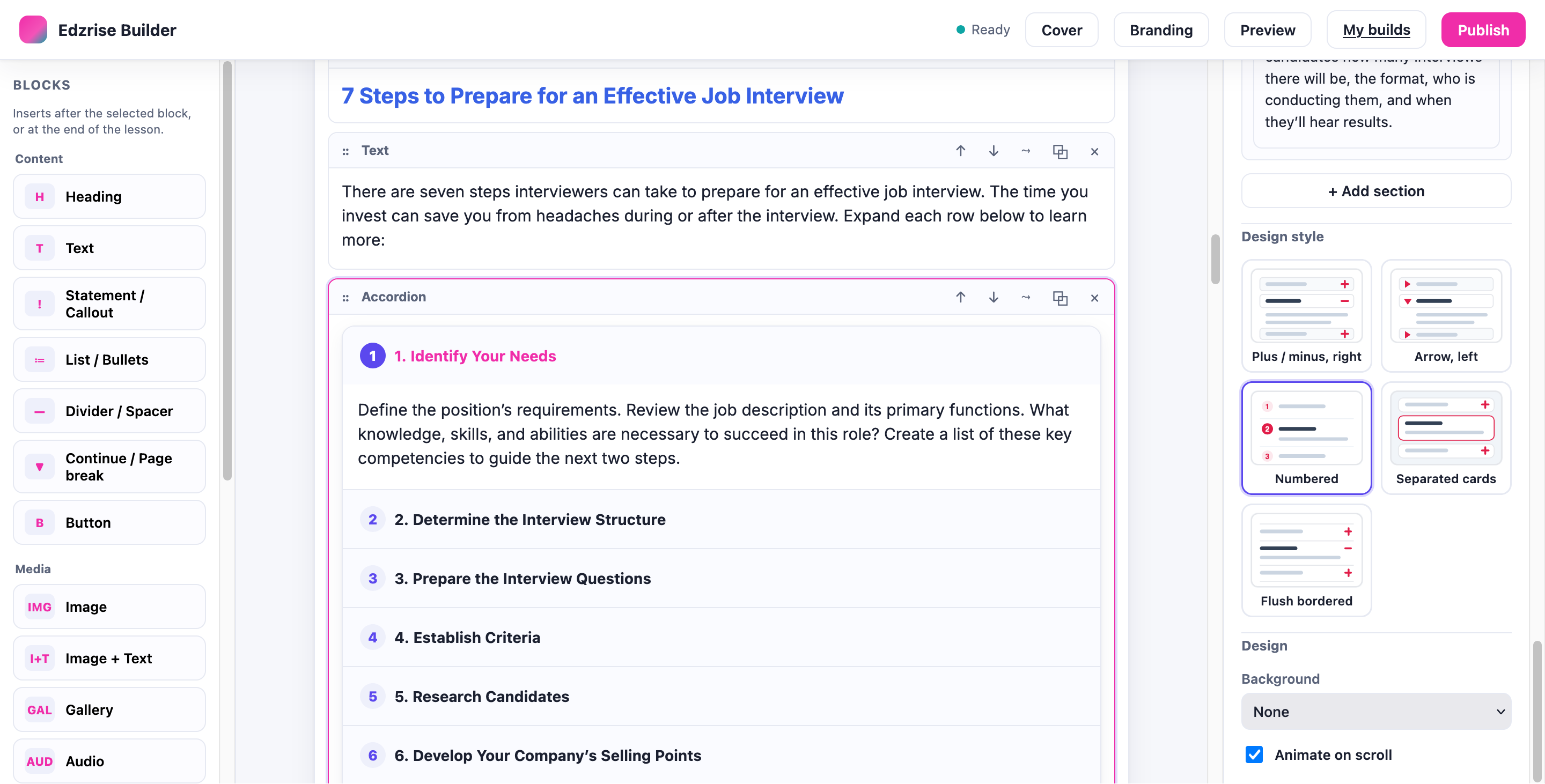
Drag, drop, reorder and nest blocks. Content, media and interactive elements — all rendered identically in the editor, the preview and the published SCORM.
Content
Media
Interactive
Pick a look without touching your content
Most blocks offer design variants from a thumbnail picker — the same content rendered another way. Switch freely; your content never changes or breaks. Add build-wide branding and a cover page to finish the lesson.
- Accordion, Tabs, Gallery, Lists, Callouts and Flashcards each have multiple variants
- Cover-page styles: full image overlay, image-left, colour block, or centered
- The same variant renders identically in the editor, the preview and the published SCORM player
Let AI sharpen the words
The ✦ AI control sits on every text field. Rewrite, shorten, expand, fix the tone, turn a paragraph into bullets, or suggest a heading — then accept, regenerate or discard. You stay in full control of every edit.
From course menu to live SCORM in five steps
Every step happens inside your LMS, and your work autosaves continuously.
Open the builder
In your course, choose More → Create SCORM. The full-screen builder opens, signed in and scoped to that course.
Choose a starting point
Blank canvas, import a document, an existing EdzLMS SCORM Builder lesson, or an AI-seeded outline.
Build & refine
Drag in blocks, pick design variants, brand the build, and use AI assist on the copy.
Preview
See exactly what the learner gets — the cover overview, the lesson menu and the paged reader.
Publish to SCORM
One click creates a native SCORM activity in the course. Re-publish later to update it in place.
Authoring and delivery in one place
Most teams either author SCORM in a separate desktop tool and upload a ZIP, or generate a course in an AI tool that publishes to a link somebody else tracks. The EdzLMS SCORM Builder removes the round-trip entirely \u2014 the build and the learner record never leave the platform.
No separate app
Author, preview and publish inside the same LMS — no extra licence, no install and no second login.
Real, native SCORM
Output is a conformant mod_scorm activity. Learners launch it normally and completion and score track as expected.
Self-contained package
All media is bundled into the published package, so each activity is a single, portable, standards-based unit.
What you actually own at the end
Authoring speed is easy to demonstrate. What matters six months later is what you are left holding.
A SCORM package you can download
Output is a conformant SCORM 1.2 / 2004 package with its media bundled in. Download it and run it in any other conformant LMS — it is a standard file, not a proprietary kit tied to us.
One completion record
Attempts, score and completion land in the same record as every other course, so your reports, reminders and certificates already cover it.
Content you can edit again
The source build stays in the builder. Reopen it, change it and re-publish in place — you are not rebuilding a course to fix a sentence.
You pay for AI, not for authoring
Building, editing, previewing and publishing are not metered — there is no per-course or per-document charge. AI-generated text, images and video use credits, so the only thing on a meter is the AI you actually ask for.
Part of a platform that already speaks SCORM
EdzLMS supports SCORM 1.2, SCORM 2004 and xAPI natively — so the builder is not a bolt-on. Author your lesson, publish it as a SCORM activity, and deliver it inside an LMS that tracks every result. Want the AI to draft the whole course first, or to analyse an existing package? EdzLMS does that too.
Who gets to publish
The strongest argument for AI authoring is that the person who knows the process should be able to build the training. The risk is the same sentence. When anyone can publish, ten course requests become fifty assets and nobody is the final authority on what is true.
The roles you already set
Building is scoped to editing teachers and managers, inside the course they are working in — the same permissions that govern everything else in your LMS.
Publishing needs a real course
A build can only be published from inside an actual course, never the site front page, so every activity lands somewhere with an owner.
Versioned re-publishing
Re-publishing updates the same activity in place and keeps the version history, so there is one current truth rather than five copies in circulation.
No new permission layer
Nothing extra to design, provision or de-provision. Access to authoring ends where access to the LMS ends.
Frequently asked questions
Do I need a separate authoring tool like Articulate?+
No. The EdzLMS SCORM Builder runs inside your LMS. You author the lesson in a full-screen visual editor and publish it as a SCORM activity from the same place — no desktop software, no licence for a separate tool, and no export-import round-trips.
How is this different from Articulate Frontline?+
They solve adjacent problems in opposite directions. Frontline converts content you already have into training kits — guides, quick references, videos, decks — and distributes them by trackable link, with completion tracked in its own analytics. The EdzLMS SCORM Builder publishes a conformant SCORM activity into the course a learner is already enrolled in, so completion lands in the same record as everything else, and the package can be downloaded and run in any other conformant LMS. We have written a sourced, side-by-side comparison if you are evaluating both.
Does building a course use credits?+
Building, editing, previewing and publishing are not metered, and there is no per-course or per-document charge. AI-generated text, images and video do use credits, so the only thing on a meter is the AI you actually ask for. A team that writes its own copy and uses its own media can produce its tenth course of the month at no incremental cost.
What SCORM version does it publish?+
It publishes a conformant SCORM package (the version is configurable by your administrator, covering SCORM 1.2 and SCORM 2004). Learners launch it like any SCORM activity, and completion and score are tracked normally inside your LMS.
Can I update a course after I've published it?+
Yes. Reopen the build, make your edits, and publish again. Re-publishing updates the same activity in place (versioned), preserving learner tracking where the SCORM standard allows. Any limits are documented to you at publish time.
What can I put in a lesson?+
Content blocks (headings, rich text, lists, callouts, buttons, dividers, page gates), media blocks (images, image + text, galleries, audio, video and embeds), and interactive blocks (accordions, tabs, click-to-reveal, timelines, modals, flashcards and check-for-understanding questions). Most blocks offer design variants — different looks for the same content.
Where do I start a build from?+
Open the builder from a course (More → Create SCORM) and pick a starting point: a blank canvas, an imported document (.docx, .pptx or .pdf), an existing EdzLMS SCORM Builder lesson, or an AI-seeded outline from the AI Course Builder. The last two appear when those features are installed on your site.
Can we take our courses with us if we leave EdzLMS?+
Yes. A published build can be downloaded as a conformant SCORM 1.2 or 2004 package, with its media bundled in, and uploaded to any other conformant LMS. Nothing you author here is locked to us — which is the point of publishing to a standard rather than to a link.
Where is completion tracked?+
Inside EdzLMS, in the same place as every other activity. A published build is a native SCORM activity, so attempts, score and completion sit in the course record your reports, reminders and certificates already read from — there is no separate dashboard to reconcile.
Can people outside L&D build courses?+
Yes, within the roles you already use. Building is scoped to editing teachers and managers in the course they are working in, and publishing has to happen from inside a real course. A subject-matter expert can build the lesson they know best without becoming an administrator of your whole catalogue.
Who can build and publish?+
Editing teachers and managers, scoped to the course they are working in. Publishing must be done from inside a real course — not the site front page — because a published activity needs a valid course context.
See the SCORM Builder on your own content
Book a free demo and we'll build a live SCORM lesson with you — from a blank canvas or your own document — inside the LMS, in minutes.